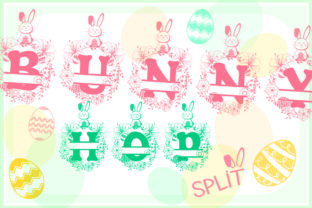
Bunny Hop Split: A Smart Font for Crafters
If you’ve ever waited too long for a design to cut—only to find jagged edges, lagging software, or unnecessary complexity—you’ll appreciate what Bunny Hop Split was made to solve. It’s not just another decorative font. It’s a handcrafted typeface built from the ground up with one clear priority: efficiency without compromise.
Every letter in Bunny Hop Split uses the fewest possible anchor points while preserving clean, recognizable shapes. That means smoother vector paths, faster processing in design software, and cleaner cuts on your machine—whether you’re using Cricut Design Space, Silhouette Studio, Brother ScanNCut, or another major platform.
Why Fewer Points Make a Real Difference
Most fonts—even “craft-friendly” ones—are designed for screens or print, not cutting machines. They often include dozens of extra points per character to render smoothly at small sizes or support complex styling. But those extra points don’t help your Cricut blade—they slow it down, increase file size, and sometimes cause errors during cut preview or material registration.
Bunny Hop Split eliminates that friction. Each uppercase letter averages under 12 points. Lowercase characters stay similarly lean. The result? Designs load faster, preview more reliably, and cut in roughly half the time of denser fonts—especially noticeable when working with layered text, large phrases, or multiple copies.
Who Benefits Most—and How
You don’t need to be a pro to get value from Bunny Hop Split. In fact, its thoughtful simplicity shines brightest for beginners learning their first cutting machine—and for seasoned crafters juggling tight deadlines.
- Beginners appreciate how easily it imports and previews. No wrestling with “simplify” tools or manual point reduction. Just type, resize, and cut—with confidence the letters will hold shape on vinyl, cardstock, or iron-on.
- Educators and parents use it for classroom signs, name tags, and interactive learning tools—where quick turnaround matters and consistency across student projects is key.
- Small business owners rely on it for product labels, packaging accents, and social media graphics that double as physical assets (like window decals or tote bag lettering).
- Bloggers and content creators integrate it into Canva or Adobe Express layouts, then export SVGs ready for cutting—no rework needed.
Real-Life Uses You Can Try Today
Here are everyday examples where Bunny Hop Split fits naturally:
- A coffee shop owner creating reusable chalkboard-style menu boards—cut from thin wood veneer, then painted and sealed.
- A homeschool parent designing personalized spelling flashcards with tactile letters cut from felt.
- A wedding planner prepping elegant table numbers on mirrored acrylic—where crisp lines and fast cutting preserve delicate material integrity.
- A t-shirt designer layering Bunny Hop Split over a simple graphic, then sending the full file straight to a heat press transfer cutter—no intermediate cleanup required.
Because it’s optimized for compatibility, you won’t run into common issues like missing glyphs in Silhouette Studio or unexpected path breaks in Cricut’s Flatten tool. All standard Latin characters—including punctuation and numerals—are included and tested across platforms.
What to Keep in Mind Before You Use It
Bunny Hop Split is intentionally minimal—not minimalist in style, but in structure. That means it prioritizes function over flourish. If you’re looking for ornate serifs, dramatic swashes, or variable weight options, this isn’t the font for those specific needs. Its strength lies in clarity, speed, and reliability—not decoration.
It works best at medium to large sizes (1.5 inches and up) on most materials. At very small scales—under 0.5 inches—it may lose subtle detail, simply because fewer points mean less fine-tuning at micro-levels. That’s by design, not limitation: it’s meant for signage, apparel, home décor, and other applications where legibility and cut fidelity matter more than tiny embellishments.
Also, while Bunny Hop Split includes basic accented characters for common European languages (like é, ñ, ü), it doesn’t cover extended Unicode ranges. If your project requires extensive multilingual support—or symbols outside the standard ASCII set—you may need to pair it with another font or adjust manually.
Getting Started Is Simple
No special setup is required. Download the font files (OTF and SVG versions included), install the OTF on your computer for typing in design apps, and use the SVGs directly in Cricut Design Space or Silhouette Studio when you want full control over layers and colors.
Try this beginner-friendly workflow:
- Open Cricut Design Space and create a new project.
- Type your phrase using Bunny Hop Split from your system font menu.
- Resize to fit your material—no need to “ungroup” or “detach” unless you’re adding shadows or outlines.
- Click “Make It,” select your material, and start cutting.
You’ll notice the difference right away: shorter wait times in the “Prepare” screen, fewer warnings about complex paths, and consistent results across batches—even when cutting 20+ identical items.
More Than Just Speed—It’s About Confidence
When you choose Bunny Hop Split, you’re choosing predictability. You’re choosing less time troubleshooting and more time creating. Whether you're making birthday banners for your niece, custom stickers for your Etsy shop, or branded merch for your podcast, knowing your font will behave exactly as expected lets you focus on what matters most: your idea, your message, your craft.
That kind of quiet reliability is rare—and valuable. Especially when your time, materials, and energy are limited.
Bunny Hop Split doesn’t shout. It delivers. Cleanly, quickly, and consistently—just like the best tools should.